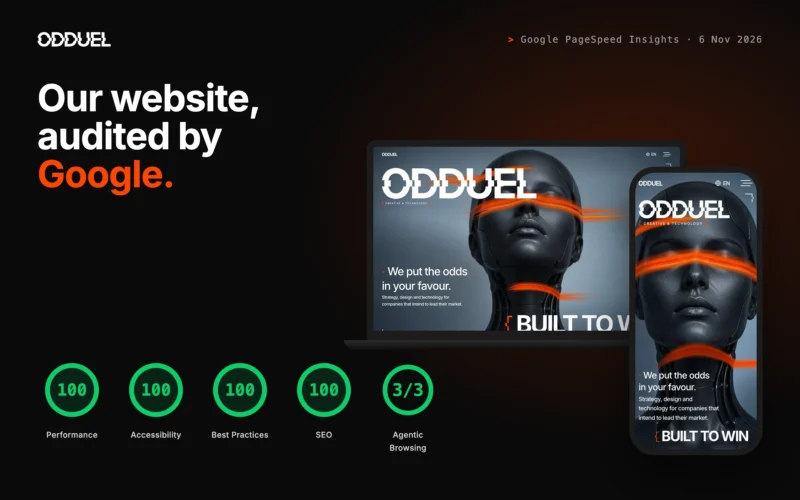
A website QA checklist is the list of tests a site must pass before launch: its content, links, forms, devices, speed, accessibility, search basics, consent, security, analytics and backups. Work through it in a fixed order, record every fault in one place, fix, test again, and launch only when nothing blocking is left. This guide gives the full checklist by area, a numbered QA process, a table of test types with who runs them and when, and answers to the questions buyers ask most.
Last updated: 19 October 2026.
What is website QA, and why does it matter?
Quality assurance (QA) is the planned checking of a website against what it is meant to do, before real visitors find the faults for you. It is not a quick click around the home page on the developer’s laptop. It is a set of tests, run on real devices and real browsers, with a record of what failed and proof that it was fixed.
It matters because launch is the moment a site is judged by everyone at once: customers, search engines, and anyone checking whether your forms reach you. A broken contact form, a cookie banner that loads trackers before consent, or a page that will not scroll on one phone can cost more than the whole test phase.
At Odduel, a creative and technology agency in Barcelona and São Paulo, QA is part of every build in our website development work, not an extra at the end. Much of the repetitive checking (link crawls, screenshots at many widths, layout checks across languages) is run by scripts, so people can spend their time on judgement: does it read well, does it feel right, does it work for someone using a keyboard or a screen reader.
In short: QA is what turns a site that works on one screen into a site that works for everyone. It needs a written checklist, real devices, a fault log and a second pass after fixes. Start it when the content is final, not on launch morning. Leave time for the fixes it will find.
When should website testing start?
Testing should start long before the final week. Some checks belong in design (contrast, tap target sizes, heading order), some during the build (forms, responsive layout), and the full pass belongs at the end, once the content is final.
A useful rule: you cannot finish QA on placeholder text. Real headlines are longer, real photographs are heavier and real legal pages change the footer. Plan the full pass after content freeze and leave room for one complete round of fixes and retesting. If your plan is a staging site, test there first, then repeat the critical checks on the live address right after launch, because servers, caches and certificates differ.
If you are still choosing how the site will be built, our website development guide covers the stages that come before this one.
The website QA checklist, area by area
Each area below lists what to test. Mark each line pass, fail or not applicable, and log every fail with the page address, device, browser and a screenshot.
Content and copy
- Every page has final text: no lorem ipsum, no “XX”, no draft notes.
- Spelling and grammar are checked in each language the site carries.
- Names, addresses, telephone numbers and opening hours match your other profiles exactly.
- Dates, prices and legal names are current and consistent across pages.
- Images are the final versions, cropped well at every width, with useful alt text.
- Headings follow a logical order: one H1 per page, then H2, then H3.
- Legal pages (privacy, cookies, legal notice) are published and linked from the footer.
- No word sits alone on the last line of a headline at common widths.
Links and navigation
- A crawler finds no broken internal links (no 404 errors).
- External links open the right page and still work.
- The main menu, footer menu and breadcrumbs work on every page.
- Old addresses from a previous site redirect with a 301 to the new ones.
- Telephone links dial, email links open with the right address, map links open directions.
- The 404 page exists, is designed and helps the visitor find their way back.
Forms
- Every form sends, and the message arrives in the right inbox.
- The visitor sees a clear confirmation, and any confirmation email arrives and reads well.
- Required fields, error messages and validation work, including with an empty form.
- Errors are announced clearly and the focus moves to the first wrong field.
- Spam protection works without blocking real people.
- The consent checkbox, where needed, is not ticked in advance and links to the privacy policy.
- Form data is stored or forwarded only where your privacy policy says it is.
Browsers and devices
- Current versions of Chrome, Safari, Firefox and Edge on desktop.
- Safari on iPhone and Chrome on Android, on real phones, not only an emulator.
- Common widths from small phones to wide desktop screens, in portrait and landscape.
- Touch: menus open and close, nothing depends on hover, tap targets are large enough.
- Animations and scroll effects behave, and respect the system setting for reduced motion.
- The site still works, at a basic level, when a script fails to load.

Performance and Core Web Vitals
- Measure the three Core Web Vitals that Google describes in its Search Central documentation: Largest Contentful Paint (loading), Interaction to Next Paint (responsiveness) and Cumulative Layout Shift (visual stability).
- Test the heaviest pages, not only the home page: a long article, a gallery, a product page.
- Images are in modern formats, sized for the space they fill, and lazy-loaded below the first screen.
- Fonts are self-hosted or preloaded, with a fallback that keeps lines from jumping.
- Caching and compression are switched on, and static files carry long cache lifetimes.
- No script from a third party blocks the first paint.

Accessibility
- Check against WCAG 2.2 level AA, the current W3C guideline, as a working target.
- Every page can be used with a keyboard alone, with a visible focus outline.
- Text contrast meets 4.5:1 for body text and 3:1 for large text, on the real ground colour.
- Images carry alt text that describes them, and decorative images carry an empty alt.
- Form fields have labels, and errors are not shown by colour alone.
- A screen reader test (VoiceOver or NVDA) on the key journeys: home, a service, the contact form.
- If you sell products or certain services to consumers in the EU, check whether the European Accessibility Act applies: Directive (EU) 2019/882 has applied since 28 June 2025, with exemptions for microenterprises providing services.
SEO basics
- Each page has a unique title and meta description.
- Addresses are short, lowercase and hyphenated; our guide to SEO-friendly URLs explains how to choose them.
- Each page prints a canonical link, and translated pages carry hreflang.
- An XML sitemap exists and lists only the pages you want found.
- robots.txt allows the live site, and no leftover “noindex” from staging remains.
- Structured data (organisation, articles, breadcrumbs) validates without errors.
- A share image and title appear correctly when a link is pasted into a messaging app.
Privacy, consent and the cookie banner
- No analytics or advertising tracker loads before the visitor accepts it, as GDPR and the ePrivacy rules require.
- Refusing is as easy as accepting, and the choice is remembered.
- The visitor can change their choice later from a link in the footer.
- The cookie policy lists every cookie and browser storage key the site actually sets.
- Embedded videos, maps and chat widgets also wait for consent, or use a privacy-friendly mode.
Security
- HTTPS on every address, with the certificate valid and renewing by itself.
- HTTP and the www version redirect to the single preferred address.
- Security headers are set (HSTS, content type, frame protection, referrer policy).
- Admin areas use strong passwords and two-step sign-in; default accounts are removed.
- Software, themes and plugins are up to date, and unused ones are removed.
- Forms and sign-in pages are limited against repeated attempts.
- No test files, backups or configuration files can be downloaded from the web.
Analytics and tracking
- Analytics records page views and the events that matter (form sent, call clicked, purchase).
- Test traffic is filtered out, or marked, so launch-week figures stay clean.
- Consent mode, where used, passes the visitor’s choice to each tag.
- Search Console and any other webmaster tools are verified, and the sitemap is submitted.
Backups and the way back
- A full backup of files and database exists before launch, stored off the server.
- Automatic backups are scheduled, and one restore has actually been tested.
- You know how to put the previous version back in minutes if launch goes wrong.
- Uptime monitoring is on and alerts reach a person who can act.
How do you run a website QA process, step by step?
A checklist only works inside a process. This is the order we follow.
- Freeze the content. Agree that text, images and legal pages are final for this round.
- Write the test plan. List the pages, journeys, browsers, devices and widths you will cover, and who tests what.
- Run the automated checks. Link crawl, HTML validation, accessibility scan, performance measures, screenshots at many widths.
- Run the manual checks. Walk every key journey on real devices: find a service, read an article, send a form, change language.
- Log every fault in one place. Address, device, browser, steps to repeat, screenshot, and a severity: blocking, major or minor.
- Fix and retest. Each fix is checked by someone other than the person who made it, and the area around it is tested again.
- Run the go or no-go review. Launch only when no blocking fault is open and the major ones are agreed in writing.
- Launch, then test the live site. Repeat the critical checks on the real address within the first hour: forms, consent, redirects, HTTPS, analytics.
- Watch the first week. Check error logs, the 404 log, form deliveries and Search Console, and fix what real visitors reveal.
Which tests do you need, and who runs them?
Not every test needs a specialist, and not every test can be automated. The table below shows the main types, who usually runs them, when, and the kind of tool used.
| Test type | Who runs it | When | Typical tools |
|---|---|---|---|
| Content proofread | Client and copywriter | After content freeze | A checklist, a second reader |
| Link and redirect check | Developer | Before and after launch | A site crawler, server logs |
| Form and email test | Developer and client | Before launch, then live | Real submissions to real inboxes |
| Cross-browser and device | QA tester or developer | Final pass | Real phones, browser test services |
| Performance | Developer | During build and final pass | Lighthouse, PageSpeed Insights, field data |
| Accessibility | Designer and developer | Design, build and final pass | Automated scanner, keyboard, screen reader |
| SEO basics | SEO lead or developer | Final pass and launch day | Crawler, Search Console, structured data test |
| Consent and privacy | Developer and legal adviser | Final pass | Browser developer tools, the cookie policy |
| Security | Developer or server administrator | Before launch, then regularly | Header checks, update reports, login limits |
| User acceptance | Client | Last step before launch | The live journeys, a sign-off sheet |
The pattern to notice: automated tools are fast and thorough on what can be measured, and people are needed for everything that needs judgement. A scanner will tell you a button has no label; only a person will tell you the label is confusing.
How long does website QA take, and what affects it?
The time depends on the size of the site, the number of templates, the number of languages, how many forms and integrations it carries, and how many devices you commit to. A small brochure site with one form is quick to test well. A multilingual site with a shop, a booking system and custom animation needs days of careful passes and at least one round of fixes.
What slows QA down most is not the testing itself but late content, unclear ownership of fixes and no agreed severity scale. When everyone knows what “blocking” means, the go or no-go decision becomes simple.
For a single campaign page the list is shorter, and the budget logic is different; our article on landing page design cost covers how such pages are scoped.
What usually goes wrong at launch?
The same faults appear again and again, and nearly all of them are cheap to catch beforehand:
- Contact forms that send to a test inbox, or whose emails land in spam.
- A “discourage search engines” setting or noindex tag left on from staging.
- Trackers firing before consent, because a tag was added outside the consent tool.
- Old addresses with no redirect, so links from other sites and search results end in a 404.
- A menu or popup that cannot be closed on one phone, or a page that cannot scroll.
- Images uploaded at full camera size, making the first screen slow on mobile data.
- Caching that keeps showing visitors the old style sheet after a change.
Each of these is on the checklist above. The point of a written list is that nobody needs to remember them under pressure.
Questions people ask
What should a website QA checklist include?
A complete website QA checklist covers content and copy, links and redirects, forms and emails, browsers and devices, performance and Core Web Vitals, accessibility, SEO basics, privacy and the cookie banner, security, analytics, and backups. Each line is marked pass or fail, and every failure is logged with the page, device, browser and a screenshot.
Can website testing be fully automated?
No. Automation is excellent for link crawls, performance measures, screenshots at many widths, validation and accessibility scans, and it should run on every change. But a person is still needed to judge whether copy reads well, whether a journey makes sense, and whether a screen reader user can actually complete a form.
Who should do QA on a new website?
Ideally several people. The developer runs technical and automated checks, a tester or designer checks devices and accessibility, and the client checks content and runs the final acceptance test. The person who fixes a fault should not be the only one who confirms it is fixed: a second pair of eyes catches what the first missed.
Does the European Accessibility Act apply to my website?
It may. The European Accessibility Act has applied since 28 June 2025 to certain products and services offered to consumers in the EU, including e-commerce, while microenterprises providing services are exempt. Whether it covers your site depends on what you sell and to whom, so check the directive or ask a legal adviser.
What is the difference between QA and user acceptance testing?
QA is the full technical and quality check run by the people who built the site, against a written checklist. User acceptance testing comes last: the client walks through the real journeys and confirms the site does what was agreed. QA finds the faults; acceptance testing confirms the finished site is the one you asked for.
Should I test again after launch?
Yes. Repeat the critical checks on the live address within the first hour, because servers, caches and certificates differ from staging. Then watch error logs, the 404 log, form deliveries and Search Console through the first week, and keep a lighter regular check after every update to plugins, themes or content.
If your site is close to launch and you want it tested properly, or you are planning a new site and want QA built into the work from the first design, our website development team can help: talk to us about your project and we will look at what your launch needs.
Further reading: WordPress security in 2027: the threats and the fixes, Website accessibility: what the European Accessibility Act asks, How long does it take to build a website? A phase-by-phase timeline, UX audit checklist: what to check and how to run one in seven steps, Website redesign SEO checklist: redesign without losing search traffic.